Goode Excel Pricing Add-In Installation
Step 1: Close Excel
Ensure that Excel is closed before proceeding with the installation of the Goode Excel Pricing Add-In.
Step 2: Open an Administrative PowerShell
Open PowerShell with administrative privileges. You can do this by:
- Click on the Windows Start button.
- Type PowerShell.
- Right-click on Windows PowerShell and choose Run as Administrator.
Step 3: Run the Installation Command
In the Administrative PowerShell window, copy and paste the following command, then press Enter:
Step 4: Enable the Add-In in Excel
- After the installation completes, open the pricing Excel sheet from WebICE.
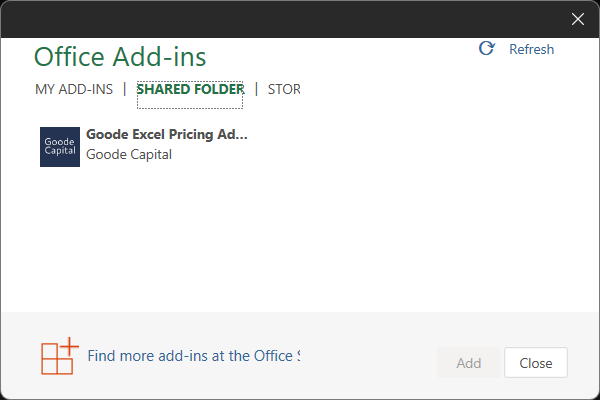
- Go to the Office Add-Ins dialog.
- Select the "Shared Folder" tab at the top of the window.
- Select "Goode Excel Pricing Add-In" from the list and click "Add".